Performance · · 10 min read
Written by Saleh S.
Saleh S. - Author & Developer at IMG Harvest. Read author bio.
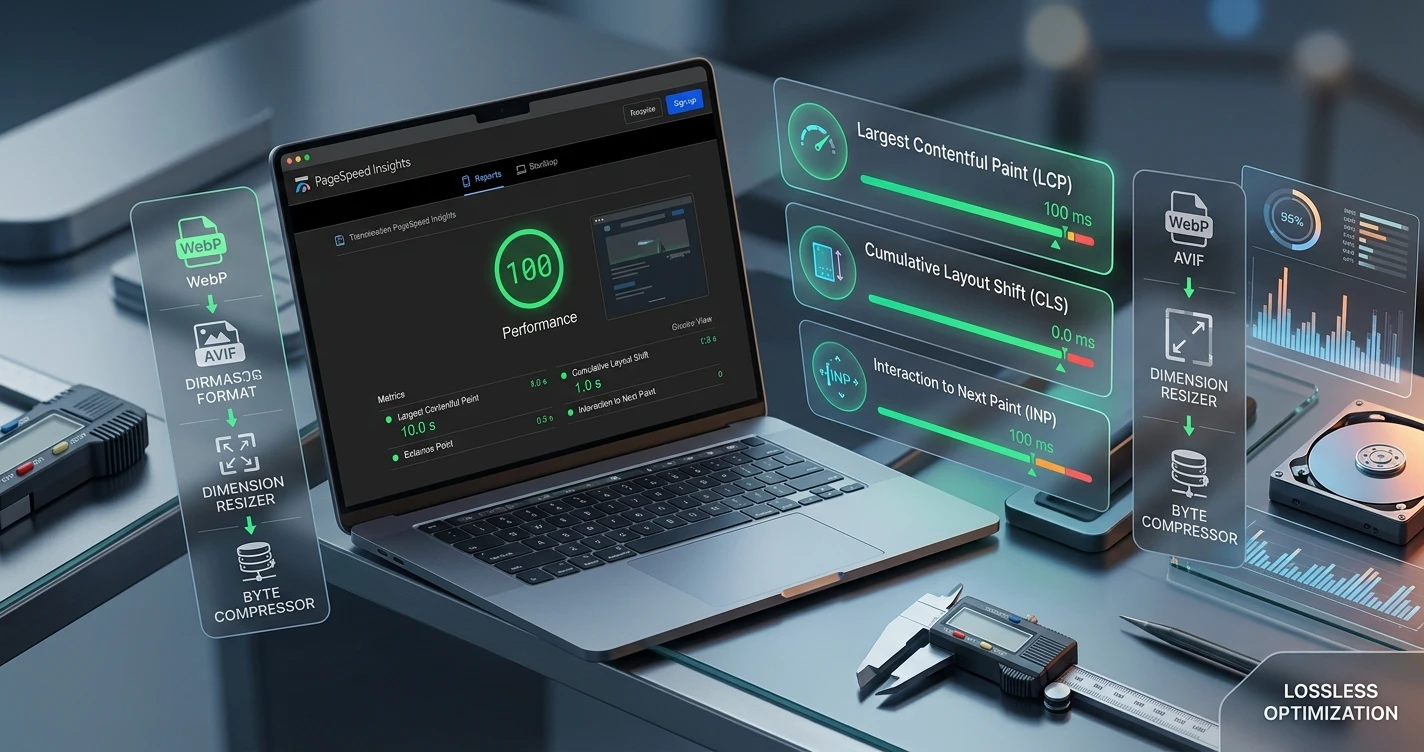
Images consistently remain the largest payload on modern web pages and the leading cause of poor Core Web Vitals scores. As Google refines its assessment of real-user experience, optimizing visual assets is no longer optional - it is a critical requirement for search visibility, conversion performance, and user retention.
The Direct Impact of Images on Core Web Vitals
Google's Core Web Vitals evaluate user experience through three main performance indicators. Unoptimized images directly degrade all three metrics, making them the first place to look when diagnosing poor scores.
- Largest Contentful Paint (LCP): On over 70% of web pages, the LCP element is an image - such as a hero banner, featured product photo, or main thumbnail. Large file sizes or slow retrieval times directly extend LCP duration, pushing pages past the 2.5-second target.
- Cumulative Layout Shift (CLS): When image elements are rendered without specified width and height attributes, browsers cannot reserve layout space before the download completes. Once loaded, the image pushes surrounding elements down, causing layout shifts and worsening your CLS score beyond the 0.1 threshold.
- Interaction to Next Paint (INP): High-resolution images requiring extensive main-thread decoding, or images causing massive browser layout recalculations upon DOM entry, freeze UI responsiveness and raise INP beyond the recommended 200 milliseconds.
Optimizing the LCP Hero Image Step-by-Step
Because the LCP image defines your main rendering speed, it demands a specialized loading strategy compared to off-screen media. A single misconfigured hero image can keep your LCP in the red zone for weeks.
- Never lazy-load your LCP image: Applying loading='lazy' to the main hero image delays its fetch request until after scripts and styles parse. For LCP images, this creates artificial loading delays. Always use loading='eager'.
- Preload critical image assets: Place a link rel='preload' tag in the HTML head to instruct the browser's preload scanner to fetch the main visual asset as early as possible in the rendering process.
- Set fetchpriority='high': This explicitly instructs the browser network thread to prioritize downloading the LCP image over lower-priority CSS or JavaScript assets that are not immediately rendering critical visual nodes.
- Use responsive formats: Serve WebP or AVIF to supported browsers, with JPEG or PNG as fallback. Use srcset and the picture element to serve different sizes based on viewport width.
The Three-Phase Optimization Workflow
To systematically prepare image assets for optimal delivery, apply a three-part workflow: resize, convert to next-gen formats, and compress. Each phase targets a different performance bottleneck.
- Phase 1 - Resize: High-resolution cameras capture images at 4000px or larger. Displaying a 4000x3000px image inside a 600x400px container wastes bandwidth and browser memory. Scale dimensions to match the maximum rendered layout size.
- Phase 2 - Convert: Legacy JPEG and PNG lack modern compression algorithms. Process scaled assets through a WebP Converter to create files 25-35% smaller at equivalent perceived quality. For modern browsers, consider AVIF for up to 20% better compression than WebP.
- Phase 3 - Compress: Final delivery requires removing unnecessary metadata, color profiles, EXIF data, and redundant pixel data. Pass encoded files through an Image Compressor set to an optimal quality balance (typically 75-85% quality factor).
Eliminating CLS with Explicit Dimensions and Aspect Ratios
Cumulative Layout Shift is often caused by images without specified dimensions. Modern browser engines can auto-calculate aspect ratios from width and height attributes, reserving exact spatial layouts before the network fetch completes.
- Always specify native width and height attributes on every img or source tag.
- Use CSS max-width: 100% and height: auto to ensure responsive scaling without breaking layout.
- Set aspect-ratio: attr(width) / attr(height) for modern CSS engines to calculate space reservation dynamically.
- For responsive images using srcset, ensure all source variants have matching width/height ratios to prevent layout shifts at different viewport sizes.
Measuring Results with PageSpeed Insights
Verification ensures that asset modifications directly improve Core Web Vitals field and lab data. Use Google's PageSpeed Insights to audit before and after applying optimization changes.
- Properly size images: Identifies images where rendered dimensions differ substantially from resource dimensions.
- Serve images in next-gen formats: Highlights remaining JPEG/PNG instances that can be converted to WebP or AVIF.
- Image elements have explicit width and height: Lists image nodes lacking layout reservation flags, impacting CLS.
- Efficiently encode images: Flags files that can be compressed further without quality loss.
- Preload Largest Contentful Paint: Shows whether your LCP image fetch delay has been reduced.
Advanced Responsive Delivery with srcset and the picture Element
Do not serve desktop-sized assets to mobile devices. Use responsive attributes so browsers pick the optimal image file based on display pixel density and viewport width.
- Use the picture element with AVIF and WebP sources as fallback formats.
- Define srcset with multiple widths: 480w, 800w, 1200w to cover common viewport sizes.
- Set sizes attribute to tell the browser which image width it will actually display.
- Apply loading='lazy' and decoding='async' only to off-screen images below the fold to keep INP fast.
- Never apply lazy loading to the LCP element - use fetchpriority='high' instead.
Key Takeaways
Optimizing images for Core Web Vitals is a systematic process: resize to display dimensions, convert to next-gen formats like WebP or AVIF, compress to remove unnecessary metadata, and always specify explicit width and height. Apply responsive markup with srcset for off-screen images, preload your LCP hero, and verify improvements with PageSpeed Insights. The result is a faster, more stable, and more responsive site that passes every Core Web Vitals threshold.
Ready to put it into practice? Try the Image Compressor - free, in-browser, and private.