Text Extraction · · 8 min read
Written by Saleh S.
Saleh S. - Author & Developer at IMG Harvest. Read author bio.
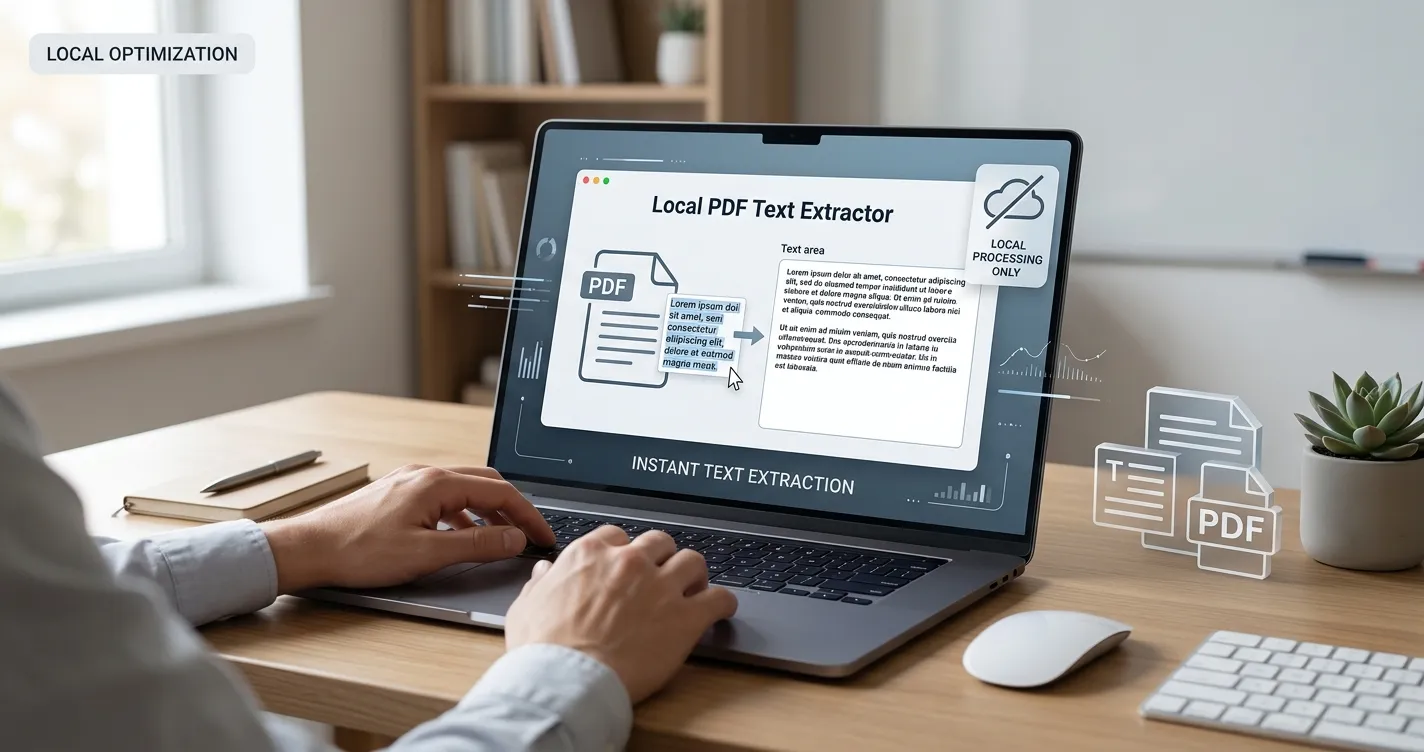
PDF files often contain text you want to copy, edit, or search, but the text is locked inside the document. Whether the PDF was created digitally or scanned from paper, you can extract the text using the right combination of free browser tools. This guide walks through every method, from digital PDFs to scanned images, with no uploads and no signup required.
Two Types of PDFs: Digital vs Scanned
Before you can extract text from a PDF, you need to know which type you have. The extraction method depends entirely on whether the text was typed into the PDF or is just an image of text.
- Digital PDF: created by saving a Word document, Google Doc, or web page as PDF. The text is real and selectable. You can copy it directly with Ctrl+C.
- Scanned PDF: created by scanning a paper document or saving an image as PDF. The text is just pixels - you cannot copy it. You need OCR (Optical Character Recognition) to convert the image to text.
- Mixed PDF: contains some digital pages and some scanned pages. You will need both methods to extract all the text.
- How to tell which type you have: open the PDF and try to select a sentence. If the cursor highlights text, it is digital. If you can only highlight a rectangular area, it is scanned.
How to Extract Text from a Digital PDF
Digital PDFs already contain the text in selectable form, so extraction is instant. You have three reliable options, all of which keep the text on your device.
- Option 1 - Direct copy: open the PDF in any reader, select the text with your cursor, press Ctrl+C (or Cmd+C on Mac), and paste into any text editor.
- Option 2 - PDF reader export: most modern PDF readers (Adobe Acrobat, Preview, Chrome's built-in PDF viewer) have a 'Save as Text' or 'Export Text' option in the File menu.
- Option 3 - Browser print to file: open the PDF in Chrome, press Ctrl+P, change the destination to 'Save as PDF' or use the 'Print to text' option if available.
- If the text comes out as gibberish or empty after copying, the PDF is actually a scanned image and you need the OCR method below.
How to Extract Text from a Scanned PDF Using OCR
For scanned PDFs, you need Optical Character Recognition. The standard workflow is to convert the PDF pages to images first, then run OCR on those images. Our free tools let you do both steps in your browser without uploading anything.
- Step 1: Open our PDF to Images converter at /tools/pdf-to-images. Drop in your scanned PDF and pick a render scale (2x is good for most documents, 3x for very small text).
- Step 2: Download the PNG images. Each page of the PDF is now a separate high-resolution image.
- Step 3: Open our Image OCR tool at /tools/image-ocr. Drop in all the PNG images at once.
- Step 4: Pick the language. English for English documents, Arabic for Arabic, or 'Auto-detect' if the document mixes languages.
- Step 5: Click Recognize. The tool reads each image and outputs the text. Copy the result or download it as a text file.
- Total time: under a minute per page for typical documents. Everything runs on your device - no upload, no signup, no cost.
Handling Multi-Language PDFs (English, Arabic, French, More)
If your PDF contains text in multiple languages - for example an English document with Arabic quotes - standard OCR tools often fail because they only recognize one language at a time. Our Image OCR supports mixed-language recognition with an Auto-detect mode.
- Auto-detect mode: the OCR engine runs both English and Arabic (or any selected pair) and picks the highest-confidence result for each line.
- For documents mixing Latin and Arabic scripts: select 'Auto-detect' and the tool will handle each line correctly.
- For documents with French, Spanish, or German: pick the specific language, or add it to the auto-detect pair for mixed scripts.
- If recognition is poor on small text, increase the PDF render scale to 3x or 4x before OCR. Higher resolution = higher accuracy.
What to Do With the Extracted Text
Once you have the text out of the PDF, you usually want to do something with it. Here are the most common next steps and the best tools for each.
- Edit and reformat: paste into Google Docs, Microsoft Word, or any text editor. The text usually comes out with rough formatting that needs cleanup.
- Search and reference: save the extracted text as a .txt file or paste into a notes app so you can search it later.
- Translate: paste the text into Google Translate or DeepL. For better results, preserve paragraph breaks during extraction.
- Convert back to PDF: paste the edited text into a document, format it, and use our Images to PDF converter at /tools/images-to-pdf if you have images, or just use your word processor's Save as PDF option.
- Combine with other PDFs: use the extracted text as the basis for a new document, or paste relevant quotes into your research notes.
Key Takeaways
Extracting text from a PDF is fast and free when you know which method to use. Digital PDFs can be copied directly. Scanned PDFs need OCR - convert the PDF to images with our PDF to Images converter, then run OCR with our Image OCR tool. Both tools run entirely in your browser, so your documents never leave your device. For multi-language documents, use the Auto-detect mode to handle mixed scripts in the same file.
Ready to put it into practice? Try the Image OCR - free, in-browser, and private.