Branding · · 9 min read
Written by Saleh S.
Saleh S. - Author & Developer at IMG Harvest. Read author bio.
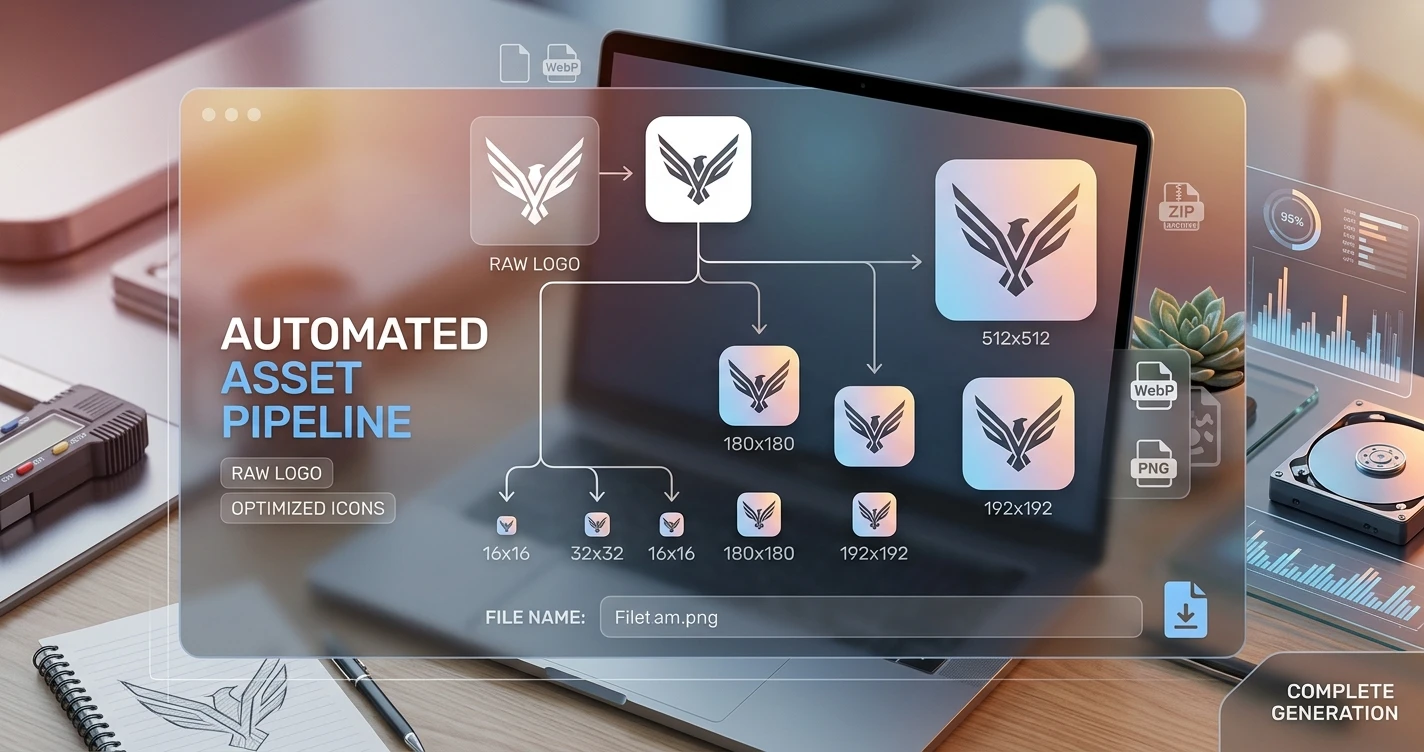
A cohesive visual identity goes far beyond placing a primary logo at the top of a website header or mobile app splash screen. In modern digital ecosystems, a brand's emblem must adapt seamlessly across desktop browsers, taskbars, mobile operating system homescreens, and push notification interfaces. This guide walks through exactly how to convert a single master logo into a complete set of production-ready PNG icons.
The Role of Icons in Web and Mobile Apps
Every touchpoint where users interact with a digital product requires visual identification. While a primary logo represents full visual identity — often combining graphics with typography — an icon set strips away excess detail to deliver immediate brand recognition in constrained UI spaces.
- App Icons (180x180px to 512x512px): populate iOS and Android homescreens, system settings, and app stores.
- Favicons (16x16px to 48x48px): appear in browser tabs, bookmark menus, and address bars.
- UI Action Icons (24x24px to 32x32px): used in navigation menus, toolbars, and action buttons.
- Missing or improperly sized icons result in blurry visuals, default fallback graphics, or rejection during app store review.
Icon Dimension Breakdown: When to Use Each Size
Exporting one large image and letting operating systems scale it down causes pixel distortion, blurring, and unnecessary bandwidth overhead. A complete icon set includes dedicated assets for specific display targets.
- 16x16: browser address bar and tiny inline web favicon — demands maximum clarity at minimal size.
- 32x32: standard desktop browser tab and taskbar shortcut.
- 48x48: Windows desktop shortcut and legacy web applications.
- 64x64: high-DPI browser tab and desktop application listing.
- 128x128: web store listings and small launcher icons.
- 180x180: Apple Touch Icon for iOS home screen web clips.
- 192x192: Android PWA home screen icon at standard DPI.
- 512x512: Google Play Store and Android PWA splash screen at high-DPI.
Converting a Logo to Multi-Size PNG Icons Step-by-Step
Generating an icon set from a source file requires a structured asset pipeline: isolate the mark, establish a square canvas, and run a multi-scale batch export.
- Step 1: Isolate the Primary Mark — a full horizontal or vertical logo with text will not fit cleanly inside a square icon. Strip away excess detail and keep the primary emblem or logotype symbol.
- Step 2: Establish a 1:1 Square Canvas — render the mark on a square aspect ratio with appropriate padding to prevent clipping on rounded-corner platforms.
- Step 3: Run Batch PNG Generation — process the square mark through an automated pipeline to export transparent, compressed PNG icons scaled precisely to each required resolution from 16x16 through 512x512.
- Step 4: Verify Transparency — export source vector assets with transparent backgrounds (PNG or SVG) to ensure seamless blending on dark desktop modes, light browser interfaces, or colorful mobile wallpapers.
Tool Specialization: Icon Generator vs. Favicon Generator
While both tools generate platform assets from source graphics, they serve distinct workflow objectives. Understanding the difference ensures you pick the right tool for each job.
- Icon Generator is built for comprehensive multi-platform workflows. It accepts high-resolution source graphics and generates scalable app icons across all standard dimensions from 16x16 to 512x512 pixels — tailored for mobile app development, PWAs, and desktop application packages.
- Favicon Generator specializes strictly in web browser environments. Beyond standard 16x16 and 32x32 PNG assets, it compiles multi-resolution legacy .ico files and generates pre-configured HTML head snippets, site.webmanifest files, and Apple touch icon references.
- For a complete brand asset set: use the Icon Generator for your app and PWA icons, then the Favicon Generator for browser-specific web identification.
Best Practices: Transparency, Margins, and Pixel Clarity
Creating professional icons from logos requires strict adherence to design constraints during source file preparation. Following these guidelines ensures crisp, professional results at every dimension.
- Maintain Alpha Channel Transparency: export source vector assets with transparent backgrounds to ensure seamless blending on any background color.
- Observe Safe Zone Padding: keep core visual elements within an 80% safe zone and allow 10% padding on all margins to prevent clipping on rounded-corner platforms.
- Optimize Small Vector Grids: when scaling down to 16x16 or 32x32 pixels, remove complex drop shadows, fine stroke outlines, and small text. Ensure primary shape edges align with whole pixel coordinates to prevent blurry anti-aliasing artifacts.
- Verify the output: download the full set and visually inspect every size — a single blurry icon at 16x16 undermines the entire brand presentation.
One-Click Asset Delivery: Exporting as a Complete ZIP Bundle
Managing dozens of individual image files across multiple dimensions slows down development setup. Production tools simplify this process by packaging all assets into a single organized download.
- Select the sizes you need from the standard set (16, 32, 48, 64, 128, 180, 192, 512).
- Generate all selected icons in your browser with zero uploads.
- Download the complete set as a single ZIP file containing every PNG at its exact dimension.
- For a full favicon package with .ico, manifest, and HTML code, pair with the Favicon Generator.
Key Takeaways
Generating a complete icon set from your logo is straightforward when you follow a structured pipeline: isolate the mark, establish a square canvas, and export every standard dimension from 16x16 to 512x512 pixels. Use Icon Generator for app and PWA icons, and Favicon Generator for browser-specific assets. Always verify transparency, safe zone padding, and pixel clarity at small dimensions. The result is a professional, pixel-perfect brand presence across every screen and platform.
Ready to put it into practice? Try the Icon Generator - free, in-browser, and private.